When you are creating documents over and over again, whether it be a document, blog post or configuration files, by copying an old one and deleting/updating the old contents. That's a very error prone process, from getting the file naming, and location right, to ensuring consistent formating throughout.
Wouldn't it be great if there was a repeatable generation process for any text file? Well that's what templates are for, they can eliminate friction and ensure consistency across everything you write.
Also wouldn't it be great if there was a easy going file format for content creation, that wasn't too complex, with just enough syntax to write basic documents. And wouldn't it be great if there was a way to attach arbitrary meta data to these documents which you could use in all sorts of interesting ways, including seamlessly flowing them through LLMs/AI? Well that's what Markdown and Frontmatter are for.
We are going to look at all 3 of these things.
Templates
First let's demystify templates, what they are and how to use them.
A template is a skeleton file containing static structure combined with placeholder dynamic data.
Here's a basic example:
Template source (src/template/hello.hbs):
This example uses the handlebars templating language:
Hello !
Here are your tasks for today:
-
Data file (data.json):
{
  "recipient": "World",
  "tasks": [
    "Review pull request",
    "Update documentation",
    "Publish blog post"
  ]
}
You can then render the template by running the cli:
$ handlebars src/templates/hello.hbs -d data.json -o output.txtTo get the following output (output.txt):
Hello World!

Here are your tasks for today:
- Review pull request
- Update documentation
- Publish blog post
Notice how not only has the recipient variables have been replaced by the corresponding value from the data file, but also that the template rendering process has iterated over all the tasks in the data file using the #each loop and inserted them into the template.
You can use templates for virtually any text format: source code scaffolding, configuration files, daily notes, and blog post drafts just to name a few.
You typically execute templates in one of two ways:
Via CLI commands: Executed directly in your terminal to quickly scaffold new files and automate workflows. You would need to install a community built CLI such as hbs-cli.
Programmatically: Integrated via libraries and packages in various programming languages to generate files dynamically within software.
There are many template languages, here are some of the most popular:
Handlebars: A popular logic-less templating engine using braces
{{ }}and block helpers like{{#each}}, serving as a robust default for many text-generation tasks.EJS (Embedded JavaScript): Uses standard JavaScript syntax inside tags (
<% %>) for simple scriptable templating.Pug (formerly Jade): Focuses on clean, indentation-based syntax to write concise HTML structures without closing tags.
Twig: A robust, feature-rich templating engine widely used across PHP ecosystems.
The point is that templating is a mature technology that has many different implementations. You don't need to learn all of them. You will normally settle on one based on both your personal experience with programming languages and perhaps the domain you will be operating in.
To give you a sense for the universal utility of templates, here is how they can fit in across industries, they aren't just for software engineers. They can streamline repetitive text creation for any professional or industry:
Software Engineering & DevOps: Scaffolding microservices, Kubernetes manifests, boilerplate configuration (.env, CI/CD pipelines), and API documentation.
Writing & Content Creation: Standardizing blog post layouts, newsletter issues, video production scripts, and editorial checklists.
Business & Operations: Generating client invoices, project proposals, meeting agendas, weekly status updates, and customer support responses.
Legal, Finance & Healthcare: Auto-filling standard contract clauses, compliance reports, patient intake structures, and recurring financial statements.
Personal & Knowledge Management: Structuring daily log entries, workout trackers, travel planning sheets, and book summaries.
Markdown
Markdown is a text file format that implements the most common text formating features you actually need when writing, like headings of different sizes, bold or italic text, numbered lists, bulleted lists, hyperlinked text. Checkout this cheatsheet for the full feature set.
Here is an example markdown file:
# Building Portability First

When constructing workflows, **simplicity** is key.

Key principles:
- Keep files flat and readable
- Store metadata near the content
- Rely on unix primitives

For detailed dotfile examples, visit github.com/mjgs/dotfiles.

<div class="callout-box">
  <p>HTML elements like this pass straight through to rendered output!</p>
</div>
It's a little odd to look at initially, but what you'll find is that very quickly you are able to parse full markdown documents as if they were typical text documents. They strike just the right balance of text and markup language. And most often you will be editing them in Markdown editors in any case, that render a beautiful UI ontop of them, and you can switch between the raw markdown and the nicely rendered text with one click or a button press. It's nice to know that no matter what, you can move them to any system and at least bee able to read them with a classic text editor. They are extremely portable.
With markdown you can keep your focus on content rather than on styling tags.
One of the other nice things about markdown is the HTML pass-through. Markdown files are very often rendered to HTML. A key feature is its flexibility: you can drop plain HTML directly into the text file (as shown above), and it passes straight through to the rendered HTML page whenever you need custom control.
Also with markdown files you get AI-native readiness by default. Because LLMs are trained extensively on plain text and Markdown, your notes, posts, and documentation are instantly readable and processable by AI tools without custom parsing layers.
Frontmatter
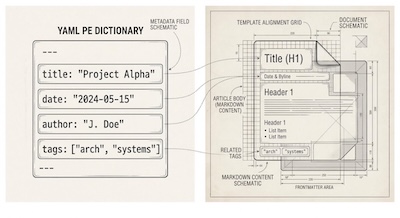
Frontmatter acts as a structured metadata layer at the very top of a plain text document (typically using YAML, TOML, or JSON enclosed in triple-dash --- delimiters).
Here's an example markdown file with YAML frontmatter:
---
title: "Templates, Markdown, and Frontmatter"
date: 2026-10-31
draft: false
tags:
  - workflow
  - markdown
  - handlebars
author: mjgs
---

# Building Portability First

Here is where the body prose begins...
While it shines brightest when paired with Markdown, frontmatter can augment many different text file formats by injecting variables, dates, titles, tags, and status flags.
Some practical applications of metadata:
Website & Static Site Generators: Tools extract frontmatter to generate
tags (page title, SEO meta tags, social sharing cards), populate layout navigation, render publication dates, and filter content by categories or tags.Content Querying & Indexing: Build dynamic archive pages, search indexes, or tag clusters based on frontmatter properties without having to parse the full body prose.
Publishing Workflows: Automated build scripts can check flags like draft: true to skip unpublished posts during site generation or deployment pipelines.
There is broad ecosystem support for both markdown and frontmatter, from static site generators and web frameworks (Hugo, Jekyll, Astro, 11ty) to knowledge management and note-taking apps (Obsidian, Logseq), to headless CMS' and flat file platforms (Decap CMS, Ghost).
That's the general idea. You would typically have this integrated into your computing envrionment in some way, for example using exports, aliases and functions, and your .bashrc file, or you might have a custom app.
While templates enforce consistency, markdown provides a clean, flexible container with HTML pass-through, and frontmatter adds structured metadata. Together, they turn your local filesystem into a powerful, extensible system for managing content and code across any domain. The key take away is that by standardising on markdown and frontmatter and designing a sensible file structure, you can have a portable setup that you fully own and control, which you can easily work on with LLMs/AI agents.